FTP, SFTP and SSH
To upload files with FileZilla, WinSCP and similar programs, create an FTP account. For the command line, use SSH.
FTP accounts
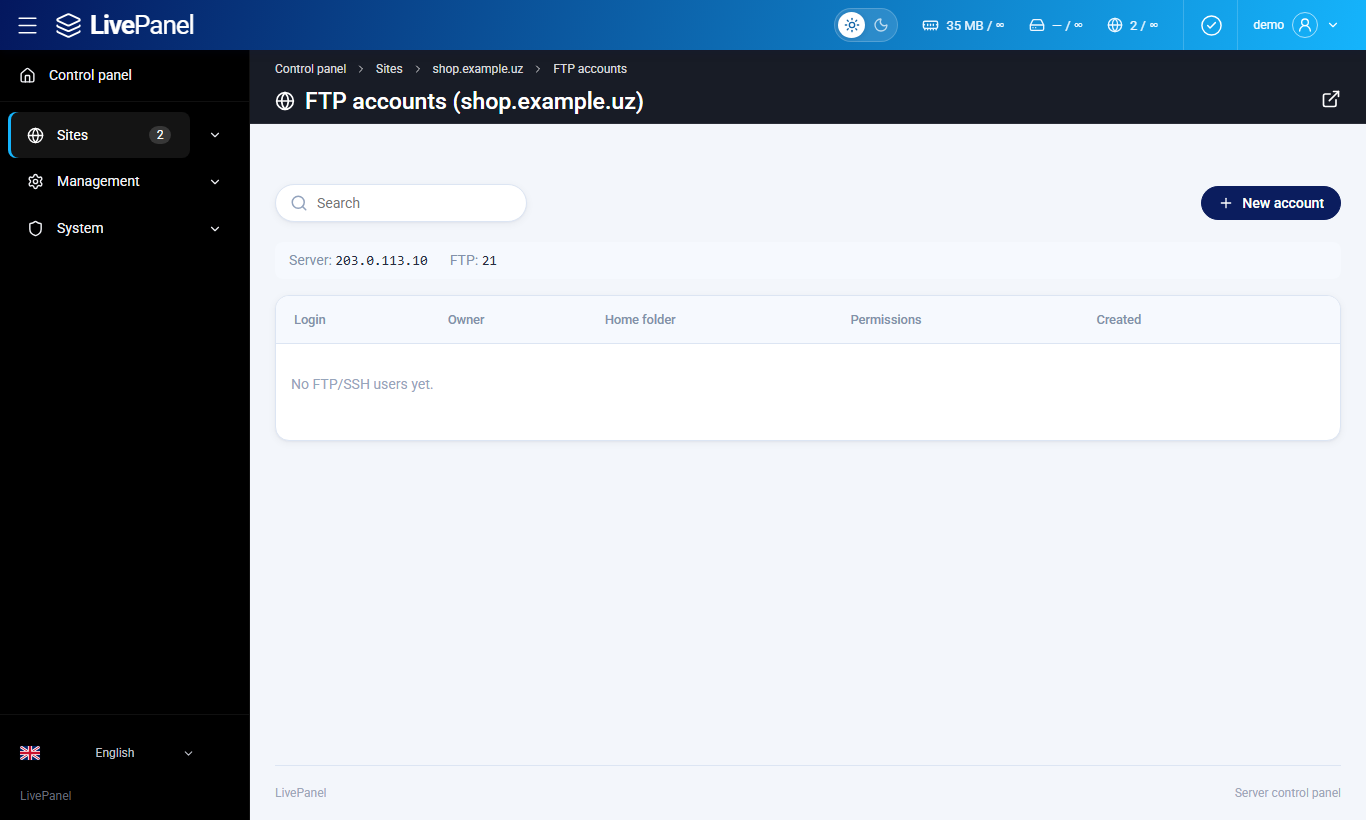
Open the FTP accounts tile on the site page. The top of the page shows the connection details: the server address and the FTP port (21).
Creating an account
- Click New account.
- Login — lowercase Latin letters, digits,
_and-; starts with a letter (3–32 characters). - Site — the account works as this site’s owner.
- Home folder — the account sees only this folder. It must be the site folder or a folder inside it.
- Permissions — Full access or Read only.
- Enter or generate a password and save.
Later you can edit the account, change its password, turn it off for a while or delete it. Deleting an account does not delete the site files.
Connecting
| Value | |
|---|---|
| Host | the server IP address or domain |
| Protocol | FTP (port 21, passive mode) |
| Login / password | the account you created |
Files uploaded over FTP belong to the site owner — the site reads them without trouble.
SFTP and SSH
SSH is given to a panel account: the administrator turns on Allow SSH access in the account settings under System → Users. Then:
- Login — the Linux user of the account’s sites (the user list shows it as the SSH login);
- Password — the same as the panel password;
- Port — the server’s SSH port (usually 22).
ssh shop@SERVER_IPFor SFTP choose the SFTP protocol in FileZilla or WinSCP; the same login and password work.
An SSH user works in an isolated environment: they see only their own home folder and cannot leave it. For server-wide work an administrator uses the Terminal in the panel as root.
Many wrong passwords are blocked by fail2ban — Panel settings and security.