Backups
The panel backs up a site’s files and databases, makes copies on a schedule, restores them in one click and also sends them to Google Drive or Dropbox.
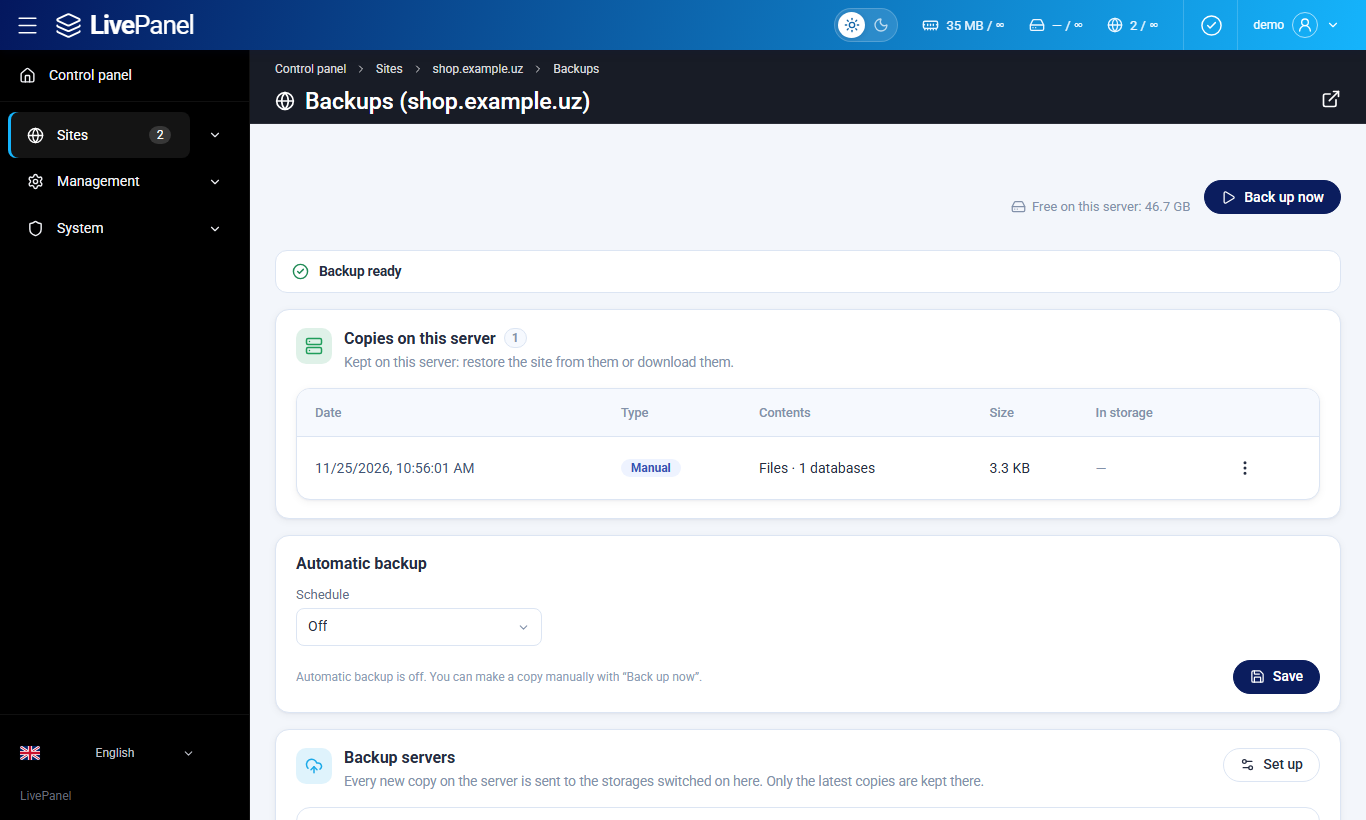
Open it with the Backups tile on the site page. The top shows the free space on the server and the Back up now button.
Copies on the server
Each copy shows its date, type (Manual, Automatic or From storage), contents (files, number of databases), size and which storages it was sent to. The row menu has:
- Download — save the copy to your computer as a
.tararchive; - Restore — return the site to the state of this copy;
- Delete — the copy is removed from the server (copies in storages are not deleted).
Restoring
- Choose Restore in the copy’s menu.
- Select what to restore: Files and/or Databases.
- Confirm.
When files are restored, the site folder is replaced completely — the current files are deleted. Databases return to their state in the copy.
Automatic backup
In the Automatic backup section:
- Schedule — Off, Daily or Weekly (with the weekday);
- Time (server) — by the server clock;
- Copies to keep — older automatic copies are removed by themselves (manual copies and copies from storage are not);
- what to back up: Files and Databases.
The result of the last automatic backup is shown here.
Backup servers (Google Drive, Dropbox)
A copy outside the server lets you restore the site even if the server is lost.
1. Connect a storage
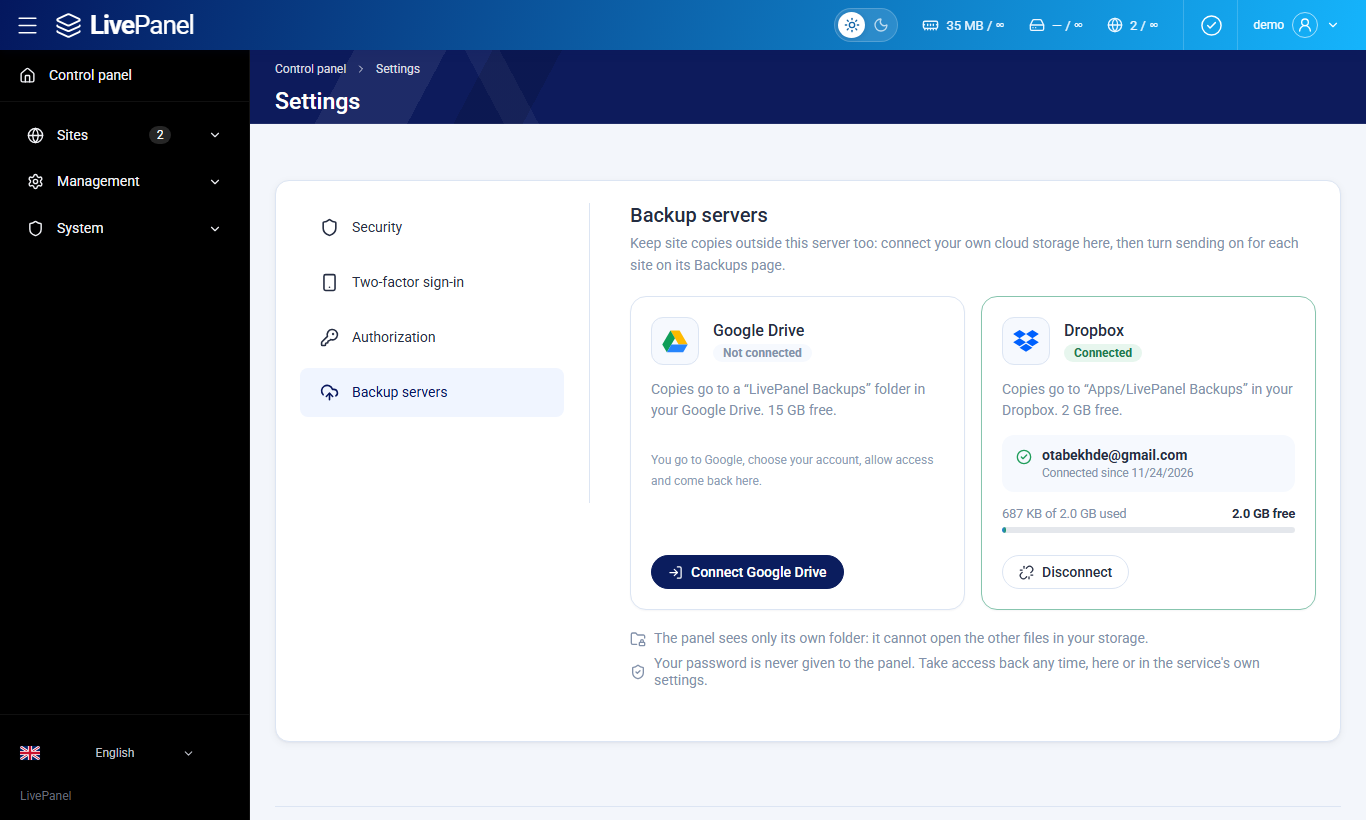
In Settings → Backup servers:
- Connect Google Drive — a Google page opens; choose the account and allow access. In the Google dialog tick See, edit, create and delete only the specific Google Drive files you use with this app — otherwise the connection is refused.
- Connect Dropbox — click Allow on the Dropbox page.
The panel sees only the folder it created (“LivePanel Backups” in Google Drive, “Apps/LivePanel Backups” in Dropbox) — it cannot reach your other files. Your password is never given to the panel. Every user connects their own storage; the card shows the used and free space in it.
2. Turn sending on for the site
On the site’s Backups page, in the Backup servers section:
- Turn on the switch in the storage row.
- Set the number of copies kept in the storage (1–60).
- Send now — sends an existing copy right away.
From then on every new copy on the server is sent to the storage by itself within a few minutes. Older copies beyond the set number are removed from the storage.
“Send now” does not make a new copy; it only sends the copies on the server. If there are none, click Back up now first.
3. Restoring from a storage
The Copies in storage table shows each copy’s state: Also on this server, Only in storage or From another server. For a copy that is only in the storage, Get to server brings it back to the server — then restore it as usual. This is also how you move a site to another server: connect the same storage on the new server and get the copy.