First sign-in and the interface
The sign-in page
Enter the login and password at https://SERVER_IP:6563. The menu at the bottom right selects the panel language, the button at the top switches between the light and dark look.
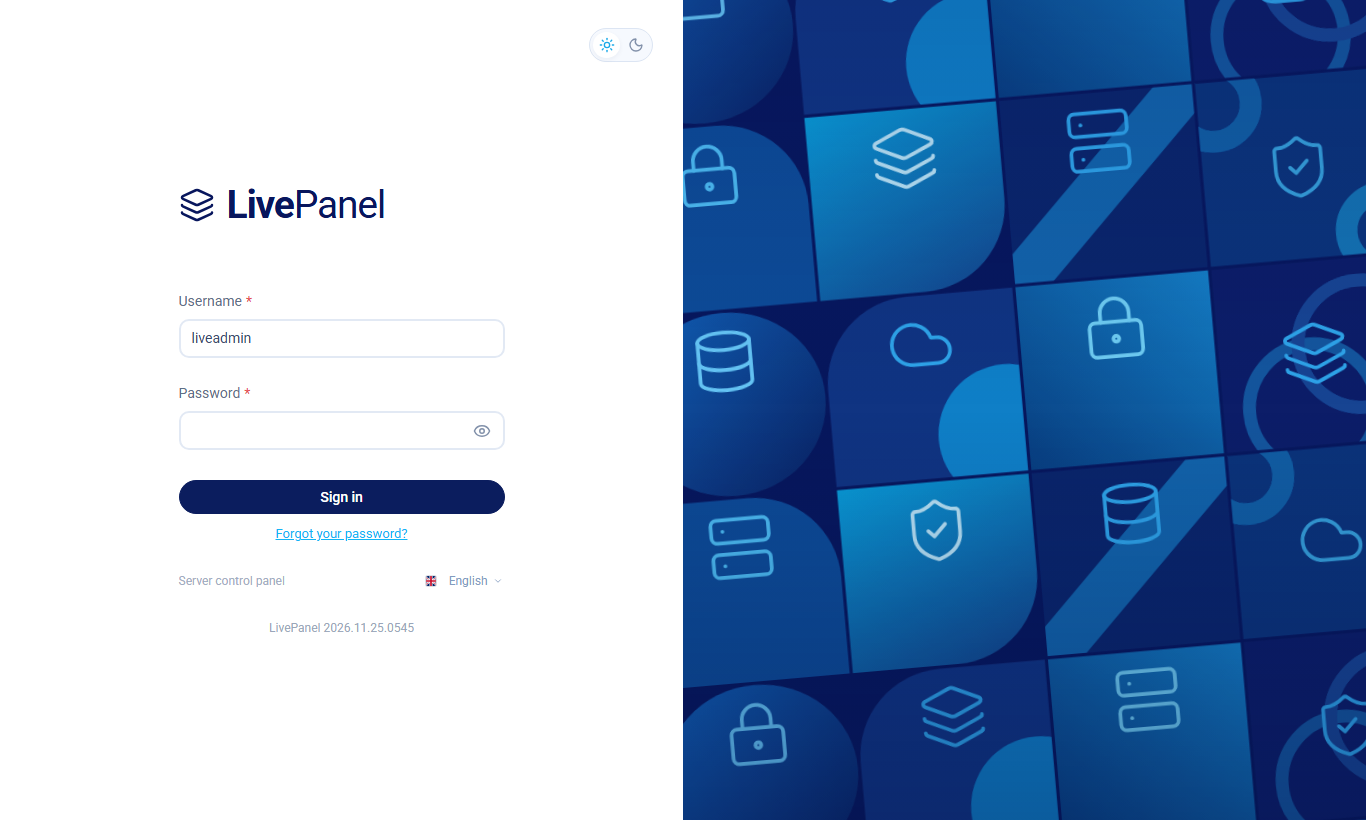
- Forgot your password? — if the account has a recovery email, a link to set a new password is sent there (valid for 30 minutes).
- After several wrong passwords the IP address is blocked for a while — Panel settings and security.
- With two-factor sign-in (2FA) on, a 6-digit code from the authenticator app is asked after the password.
After the first sign-in
- Activate a license — the panel does not work without one; the Free plan costs nothing. License and plans.
- Enter a recovery email — the panel asks for it on the first sign-in. You use it if you forget the password.
- Change the password and turn on 2FA — Settings → Security and Two-factor sign-in.
The panel layout
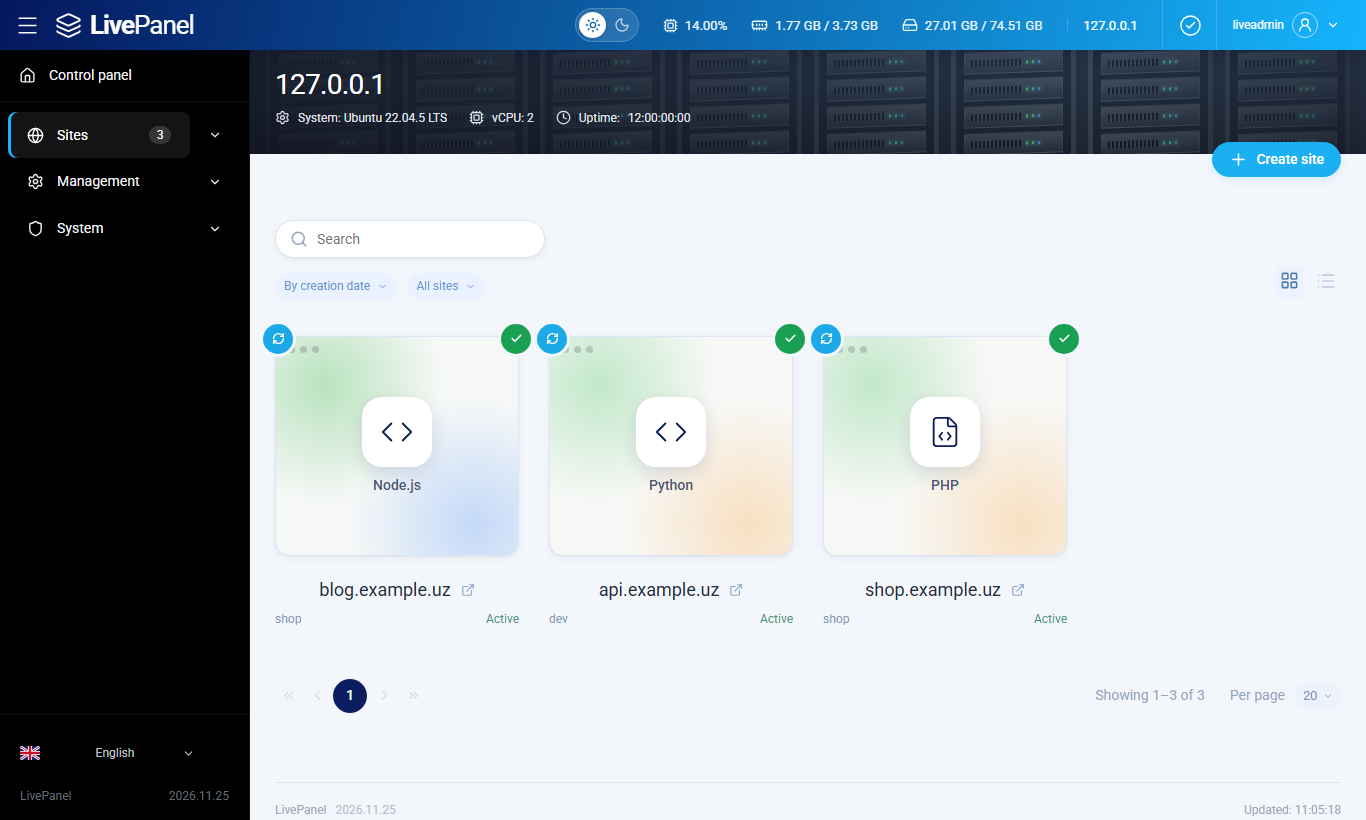
Top bar:
- CPU, memory and disk use and the server IP address (for an administrator);
- for a regular user, their limits: RAM and disk used and the number of sites;
- the light/dark switch and the account menu (settings, sign out).
Left menu:
| Section | Contents |
|---|---|
| Control panel | Server status and site cards |
| Sites | The list of sites, a new site, the sections of each site |
| Management | Files, databases, SSL, DNS, mail, FTP, cron, backups |
| System | Users, applications, services, firewall, statistics, terminal, activity log, license |
The menu depends on the account role: a regular user does not see server settings — Users, roles and limits.
The Sites page
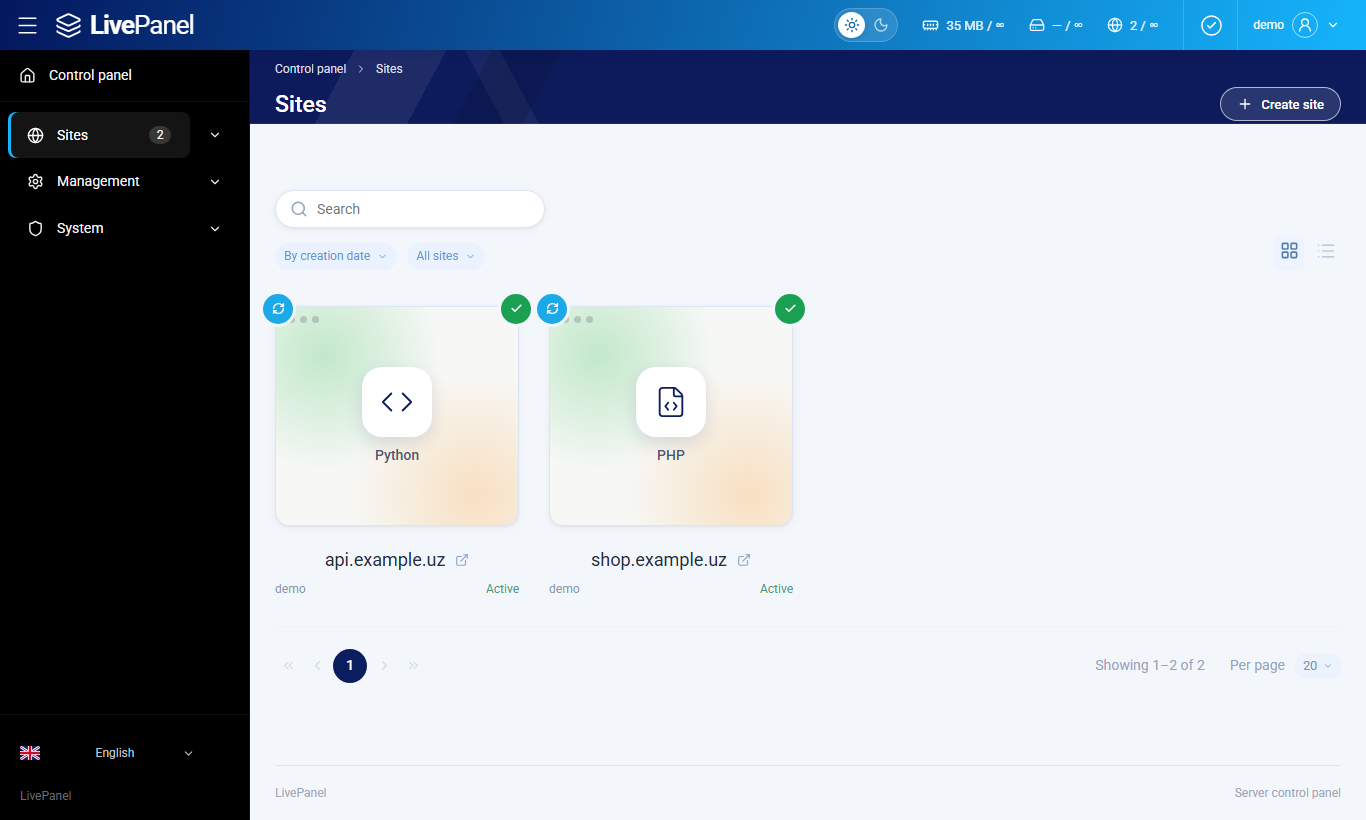
Each site card shows the site’s look (a screenshot), its domain, owner and status. Click the card to open the site page — Managing a site. The Create site button at the top right opens the site creation wizard — Creating a site.
You can switch between cards and a table, search and sort the sites.