Databases
The panel manages MySQL 8 databases (installed with the panel) and PostgreSQL databases (installed from System → Applications). Every database belongs to one site: when the site is deleted, its databases are deleted too.
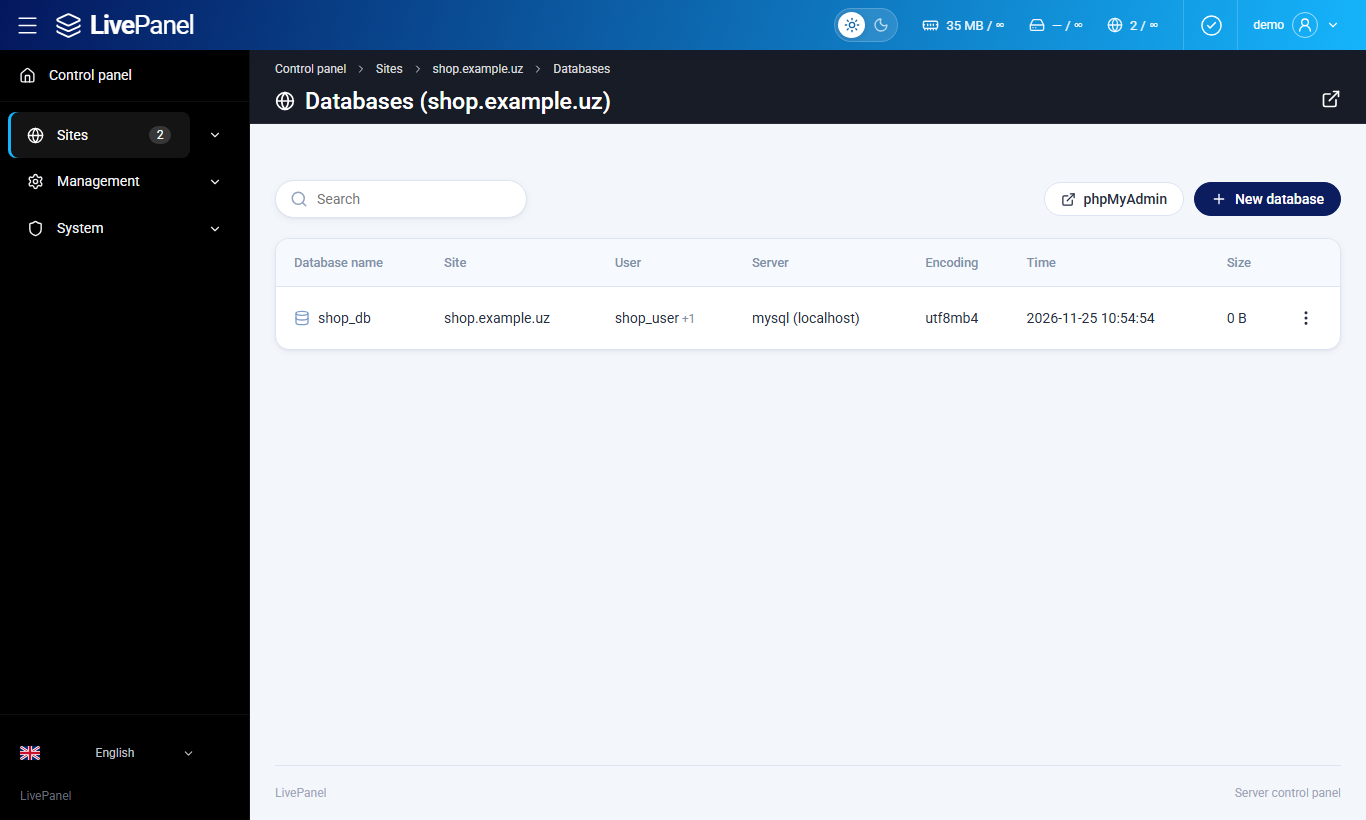
Creating a database
- On the Databases page click New database.
- Database type — MySQL or PostgreSQL.
- Site — which site the database belongs to.
- Database name and User — lowercase Latin letters, digits and
_, up to 32 characters. - Password — at least 8 characters; the Generate button makes a strong one. Save the password — it is not shown again.
- Charset —
utf8mb4(recommended).
Settings for your site:
| MySQL | PostgreSQL | |
|---|---|---|
| Host | localhost |
127.0.0.1 |
| Port | 3306 | 5432 |
phpMyAdmin and Adminer
Open phpMyAdmin in the row menu (Open in PostgreSQL for PostgreSQL) opens the database in one click without asking for a password — the panel creates a temporary sign-in.
The row menu
| Action | Notes |
|---|---|
| Change password | A new password for the main user |
| Users and access | Extra users and outside access (MySQL) |
| Import (.sql) | Load a dump file into the database |
| Export (.sql.gz) | Download the database as a compressed dump |
| Delete | The database and all its data are deleted |
Extra users and rights
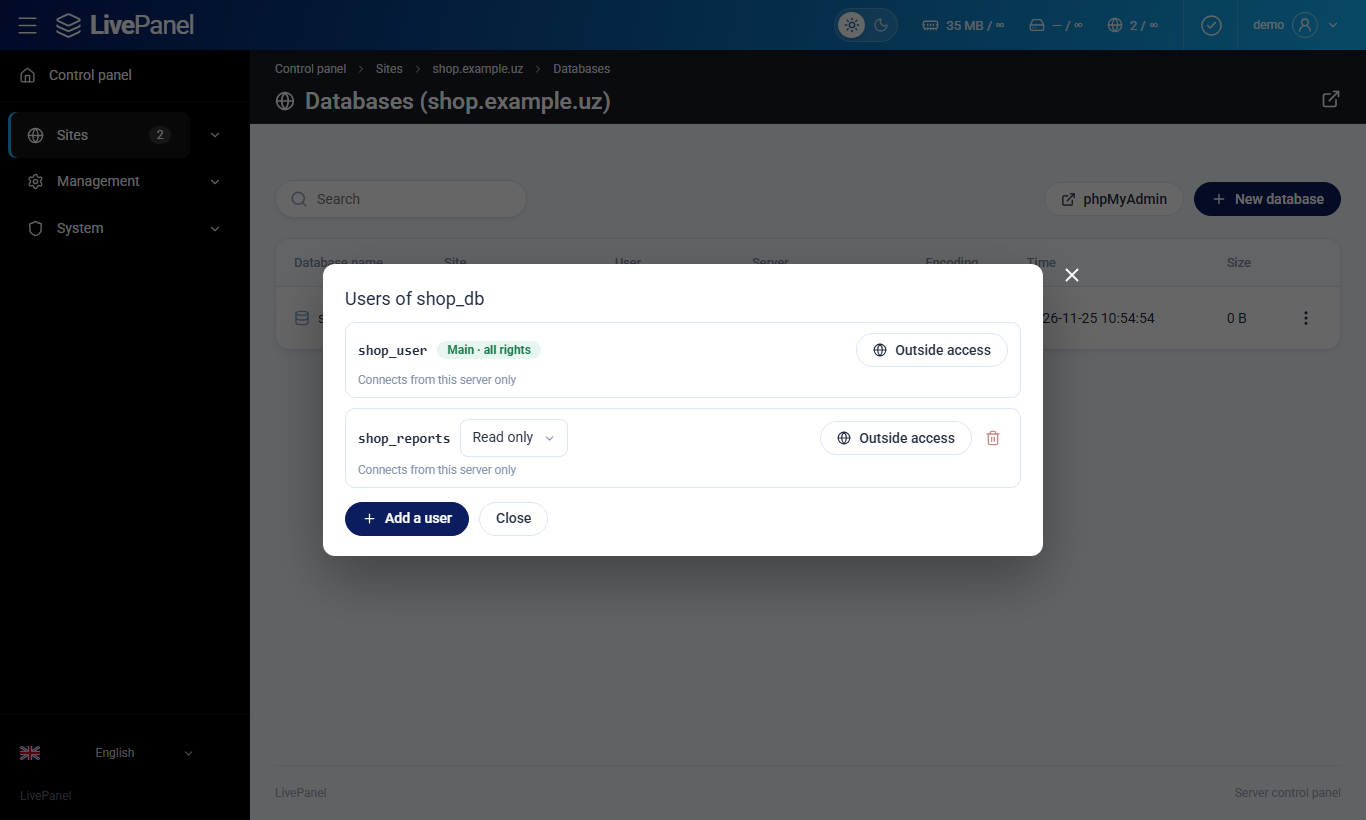
The Users and access dialog shows the database’s main user (all rights) and the extra users. Up to 20 users can be added to one database.
| Right | What the user can do |
|---|---|
| All rights | May also create, change and drop tables |
| Read and write | Reads, adds, changes and deletes data; cannot change the table structure |
| Read only | Reads only — for reports and backup tools |
Outside access (Remote MySQL)
Normally the database accepts connections only from this server. If you need to connect from a program on your computer (DBeaver, HeidiSQL, MySQL Workbench) or from another server:
- In the user row click Outside access.
- Addresses allowed to connect — one IP (
203.0.113.7) or network (198.51.100.0/24) per line.%means any address (risky: the database is open to the whole internet). - When a new address is added, a password is asked — it becomes the user’s password everywhere.
- Save. Connect with the server IP as the host, port 3306.
The panel opens MySQL to outside addresses and opens port 3306 in the firewall only for the listed addresses. When the list is emptied, the port is closed again.
Import
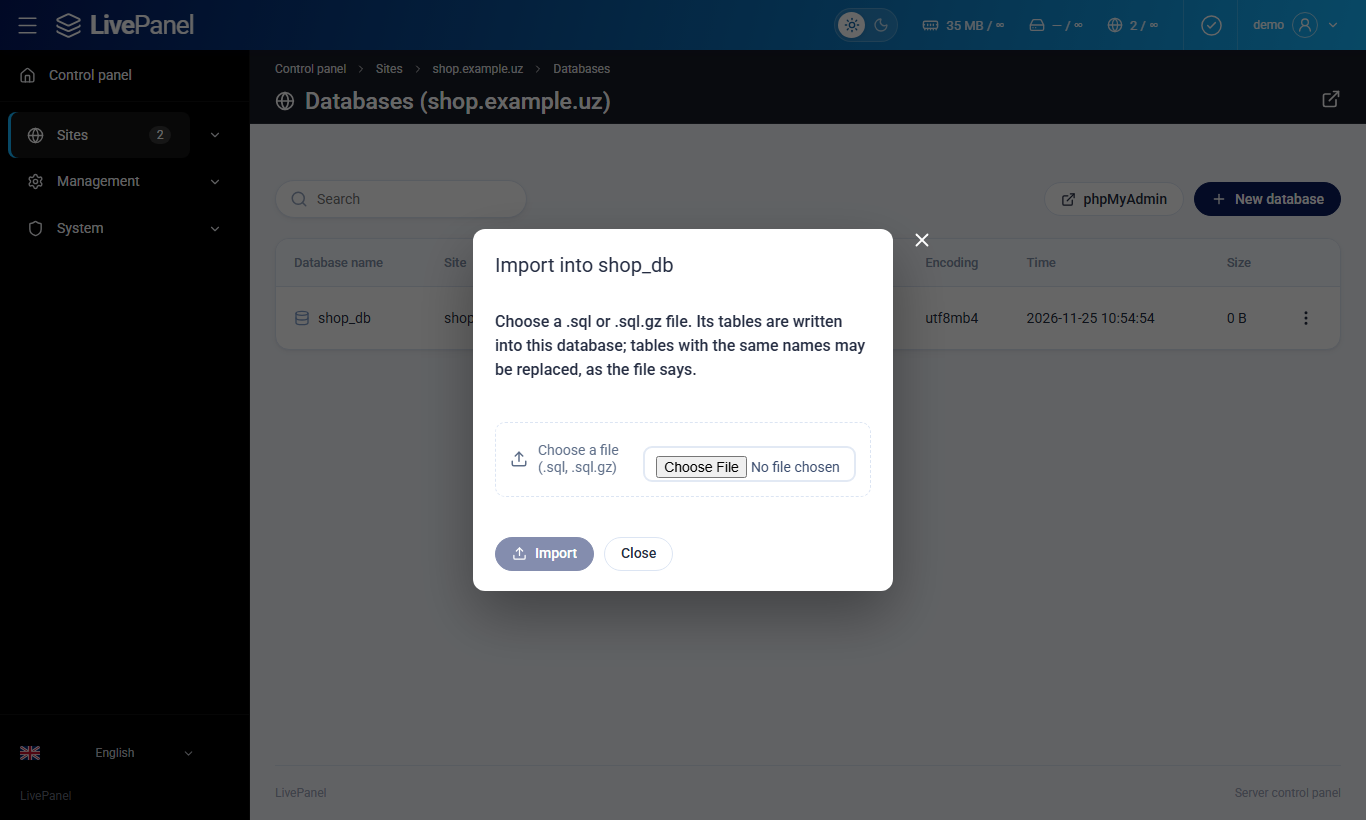
- Choose Import (.sql) and pick a
.sqlor.sql.gzfile. - The file is uploaded (the percentage is shown), then written into the database.
- On an error the MySQL/PostgreSQL message is shown.
Security: the import runs as a temporary user with rights to this database only — the commands in the file cannot touch other databases. DEFINER clauses from dumps of other servers are removed, and views and triggers are moved to the database’s own user. Large files can be imported too (up to 2 GB).
Limits
If the account has a database limit, no new database is created once it is reached — Users, roles and limits.