File manager
The file manager lets you work with the site files in the browser: upload, edit, archive and more. Open it with the Files tile on the site page. The account needs the Manage files permission.
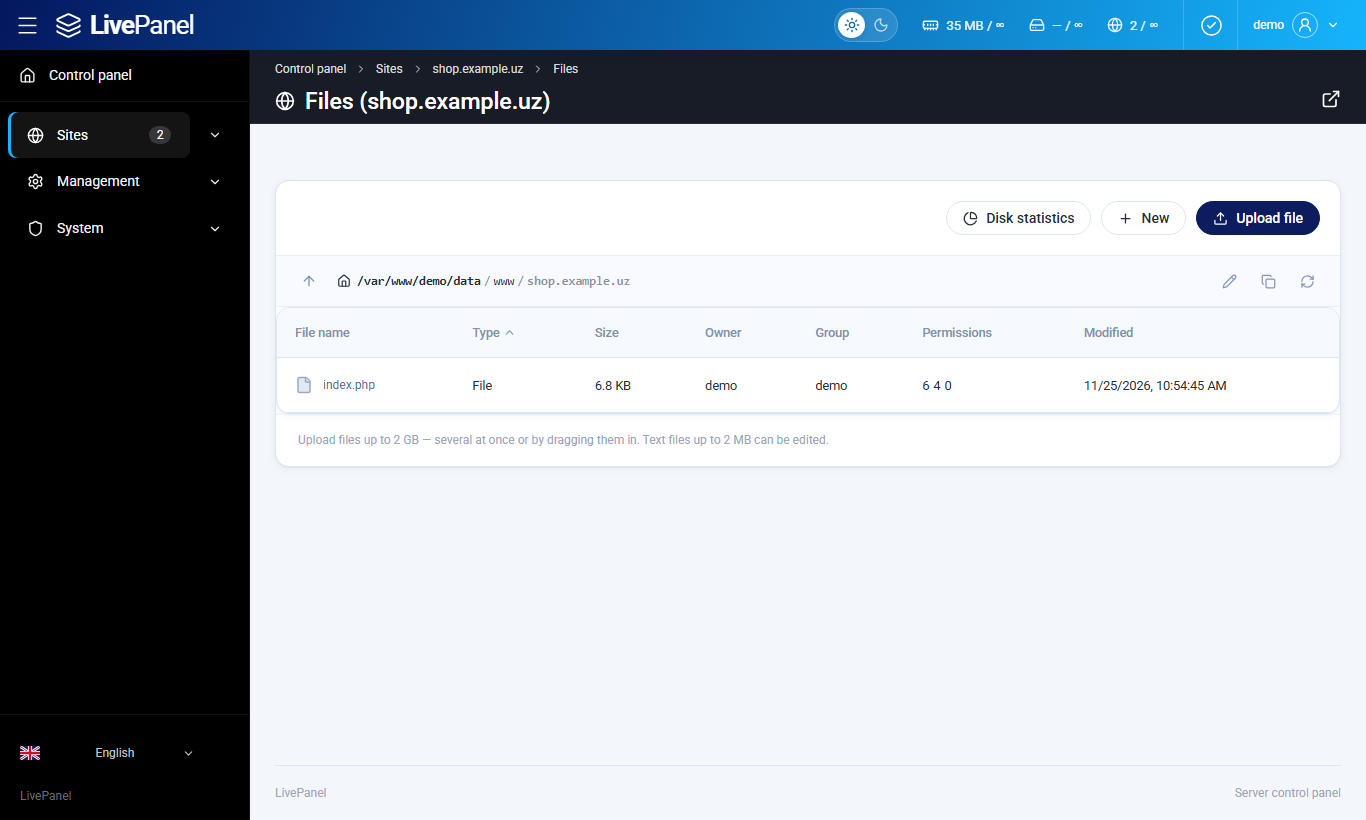
It shows the site user’s home folder and never goes outside it. The site files are in www/<domain>. Every action runs as the site user, so file owners stay right and the disk quota is counted.
Uploading
- The Upload file button, or drag files into the window.
- One file can be up to 2 GB. Several files can be uploaded at once.
- With several files, one progress bar for their total size is shown, e.g. “Uploading 20 files — 7 done · 45%”. Files that failed are listed with the reason.
- Folders cannot be uploaded — upload an archive and extract it in the panel.
New file and folder
New creates an empty file or folder.
Actions
Double-click a file to open or edit it. With the row menu or by selecting several items:
| Action | Notes |
|---|---|
| Open / Edit | Text files up to 2 MB, with syntax highlighting; the encoding can be chosen |
| Download | Save to your computer |
| Rename | |
| Move, Copy | To another folder |
| Change permissions | E.g. 644 (file), 755 (folder); recursive with “Apply to contents too” |
| Add to archive | A .zip or .tar.gz archive |
| Extract | ZIP, TAR, GZ, RAR, 7Z and more |
| Delete | Folders are deleted with their contents |
With several items selected, move, copy, permissions, archive and delete apply to all of them.
About deleting
- Any file or folder can be deleted; read-only folders are deleted with their contents too.
- If the site’s own folder or
wwwis deleted, the panel makes it again, empty — the site keeps working. - These folders cannot be moved or renamed, because the site lives at that path.
Disk statistics
Disk statistics shows what takes the space in a folder: the largest folders, the largest files and the size by extension. Useful when the disk fills up.
Security
Symbolic links cannot lead outside the site user’s folder — other sites and system files stay invisible.