Deploying a Node.js app from GitHub
In this guide we connect an Express (or Next.js, NestJS) app from GitHub to the panel: after every git push the site updates itself.
You need: a GitHub repository and a domain pointed to the server (e.g. api.example.uz).
1. Prepare the app
The panel starts the app through the app.js file in the site folder and gives the port in the PORT environment variable. Have app.js in the repository root:
const express = require("express");
const app = express();

app.get("/", (req, res) => res.json({ ok: true }));

app.listen(Number(process.env.PORT), "127.0.0.1", () => {
  console.log("listening on", process.env.PORT);
});
For Next.js or NestJS you do not need to write app.js yourself: in step 2 create the site with CMS / Framework → Node.js → Next.js (or NestJS). The panel writes an app.js that starts the app on the right port and address. Git deploy does not delete files that are not in the repository, so this file stays and works with the code from the repository.
Keep the packages in package.json. Do not commit node_modules.
2. Create a Node.js site
- Sites → Create site → Node.js (for Next.js and NestJS — CMS / Framework → Node.js → Next.js / NestJS).
- Domain:
api.example.uz, the Node.js version you need (other versions — System → Applications). - Create site.
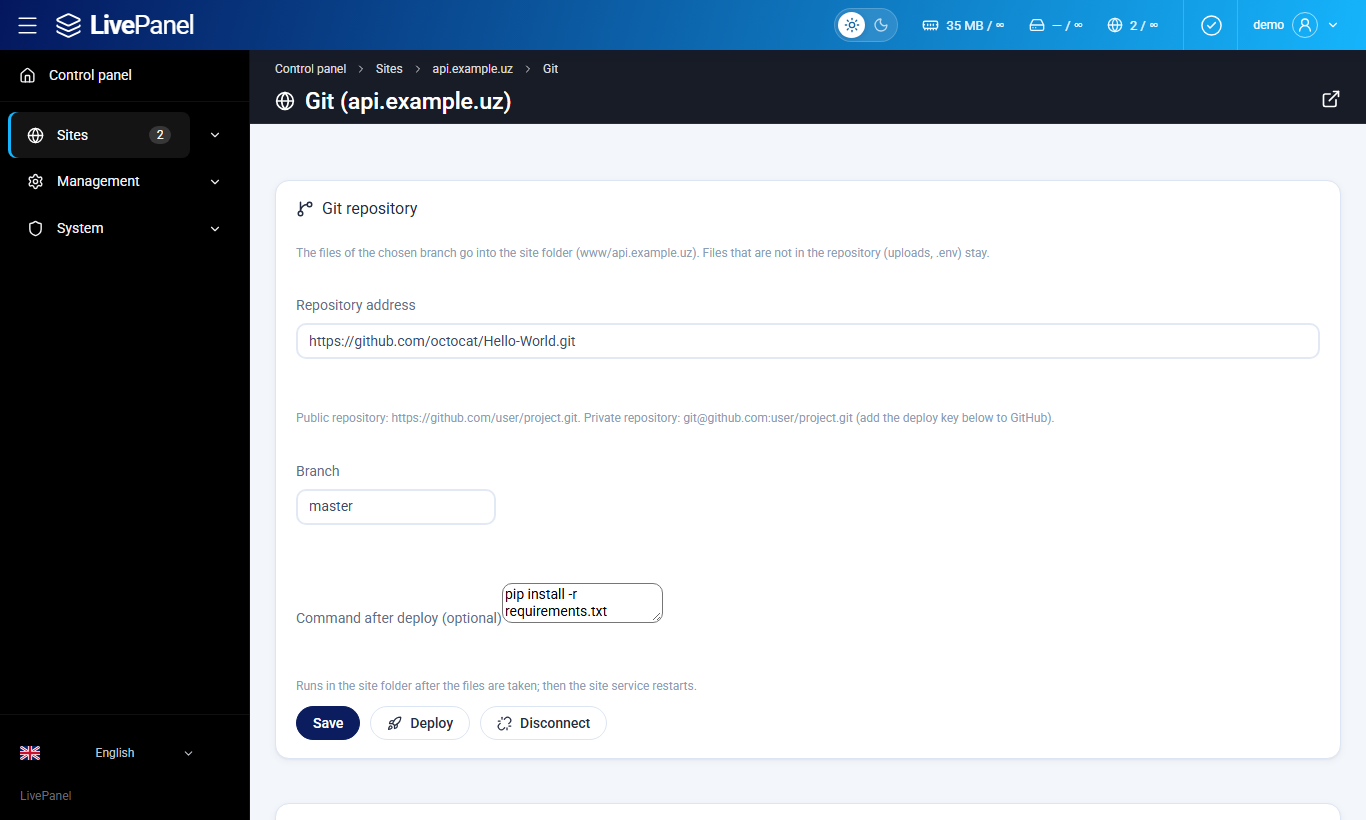
3. Connect the repository
-
Open the Git tile on the site page.
-
Repository address:
- public repo —
https://github.com/user/app.git; - private repo —
[email protected]:user/app.gitand add the page’s deploy key in GitHub under Settings → Deploy keys.
- public repo —
-
Branch:
main. -
Command after deploy:
npm ci --omit=dev || npm install --omit=devIf a build is needed (Next.js, NestJS, TypeScript):
npm ci && npm run build -
Connect and take the files (for a private repo — Deploy after adding the key).
The deploy log shows every step; at the end the site service restarts. Details — Deploying from Git.
4. Environment variables
Do not commit secrets (database address, API keys). Use Settings → Backend → Environment variables:
NODE_ENV=production
DATABASE_URL=mysql://app_user:password@localhost:3306/app_db
JWT_SECRET=...
Saving restarts the app. If you need a database — Databases.
5. Automatic deploy on every push
- Copy the webhook address from the Git page.
- GitHub: Settings → Webhooks → Add webhook — Payload URL: the webhook address, Content type:
application/json, Just the push event. - If the panel certificate is self-signed, turn SSL verification off or give the panel a trusted certificate (Panel address and SSL).
Now a few seconds after git push origin main the site updates; the log shows who started the deploy (by webhook).
From CI (GitHub Actions and others) you can also start a deploy through the API: POST /api/v2/git with {"domain":"api.example.uz","action":"deploy"} (Premium plan).
6. SSL and checking
- SSL certificates → Let’s Encrypt (SSL certificates).
- Open
https://api.example.uz.
Troubleshooting
| Symptom | What to do |
|---|---|
| The site returns 502 | The app did not start: Logs → Application log. Usually a hard-coded port instead of PORT, or no app.js |
| Deploy says “the command failed” | The end of the deploy log — usually an npm error or a missing package |
| The deploy stopped after 20 minutes | The command has something that never ends, like npm start — remove it |
| Changes do not show | Is the webhook green in GitHub (Recent Deliveries) and is the branch right |
Details — Python and Node.js sites.