Deploying from Git
Connect a GitHub, GitLab or any other Git repository to the site and put the code on the site in one click — or automatically on every git push. Open it with the Git tile on the site page.
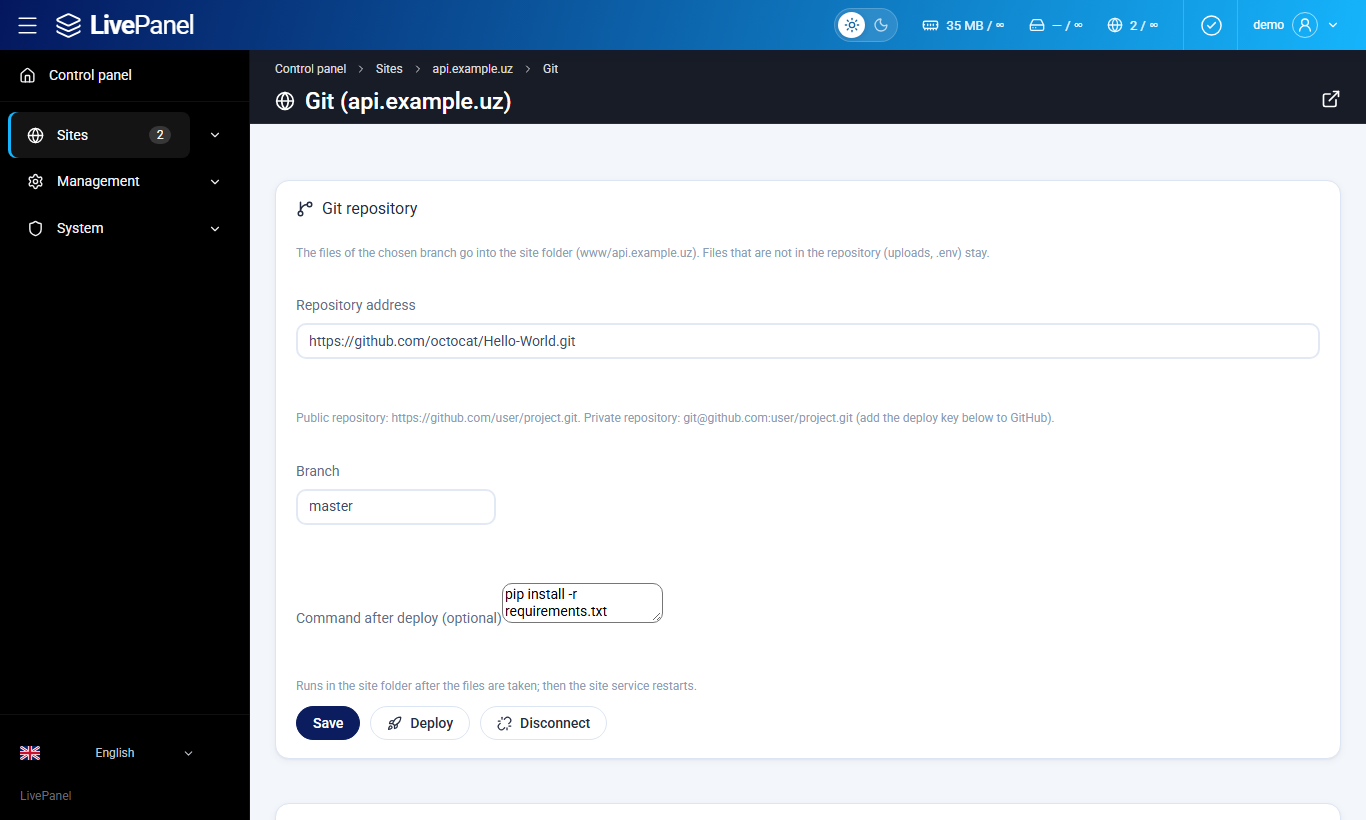
Connecting a repository
-
Repository address:
- public repository:
https://github.com/user/project.git; - private repository:
[email protected]:user/project.git(needs the deploy key below).
- public repository:
-
Branch — e.g.
mainormaster. -
Command after deploy (optional) — runs in the site folder after the files are taken:
Site type Example PHP composer install --no-dev --optimize-autoloaderNode.js npm install && npm run build --if-presentPython .venv/bin/pip install -r requirements.txt -
Click Connect and take the files. For a public repository the files are taken right away.
Private repository: the deploy key
The panel creates a separate deploy key (an SSH key) for the site and shows it on the page. Add it to the repository:
- GitHub: repository → Settings → Deploy keys → Add deploy key → paste the key (no write access needed).
- GitLab: Settings → Repository → Deploy keys.
Then click Deploy.
How a deploy works
- The chosen branch is fetched from the repository and written into the site folder (
git fetch+git checkout -f). - Submodules are updated too, if any.
- The panel’s starter page is removed if the repository does not have it.
- The command after deploy runs.
- On Node.js and Python sites the service is restarted.
Files that are not in the repository stay — uploaded images, .env, caches are kept. Everything runs as the site user.
node, npm, npx, composer, php and the site’s Python environment work in the command.
Do not put commands that never finish, such as
npm start, into the deploy command — the deploy stops with an error after 20 minutes. Keeping the application running is the site service’s job (Python and Node.js sites).
Webhook: deploy on every push
Add the page’s webhook address to the repository:
- GitHub: Settings → Webhooks → Add webhook — Payload URL: the webhook address, Content type:
application/json, event: Just the push event. - If the panel certificate is self-signed, turn off SSL verification (or give the panel a trusted certificate — Panel address and SSL).
The address contains a secret token — do not share it. The refresh button makes a new address (the old one stops working).
Deploy results
The bottom of the page shows the last deploy: its status, time, who started it (from the panel or by webhook), the commit and the full log. On an error the log says which step failed:
| Error | Cause |
|---|---|
| The repository could not be fetched | Wrong address or branch, or the deploy key was not added to a private repository |
| The command after deploy failed | An error in the command — see the end of the log |
Disconnect removes the Git settings; the site files and the .git folder stay.