Users, roles and limits
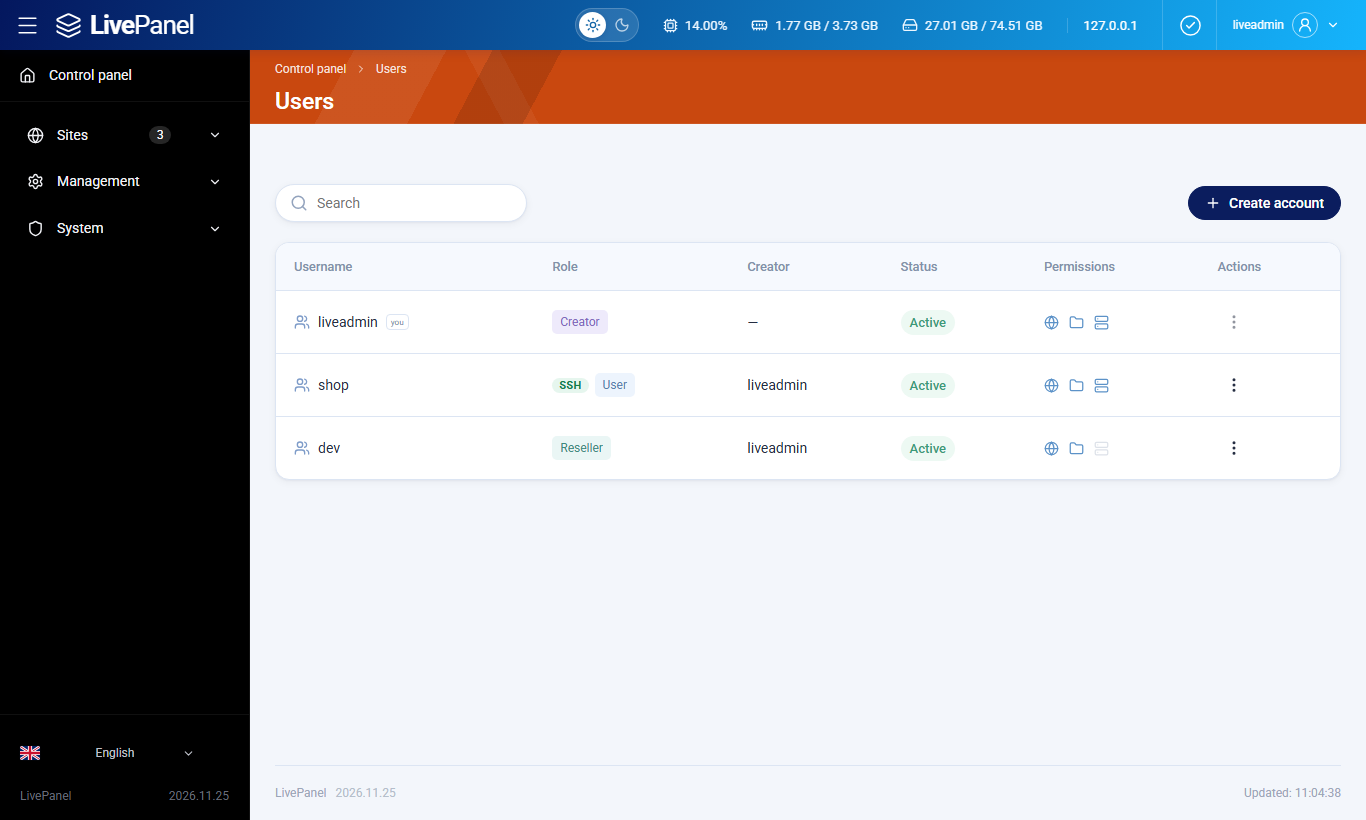
Panel accounts are created and managed in System → Users. Give every customer a separate account and they see and manage only their own sites.
Roles
| Role | What it can do |
|---|---|
| Creator | The main administrator created by the installer (liveadmin). Access to everything; cannot be deleted |
| Admin | Manages the whole server and all accounts |
| Reseller | Manages the users they created and gives them limits; can set their own brand |
| User | Works only with their own sites; does not see server settings |
Creating an account
-
Click Create account.
-
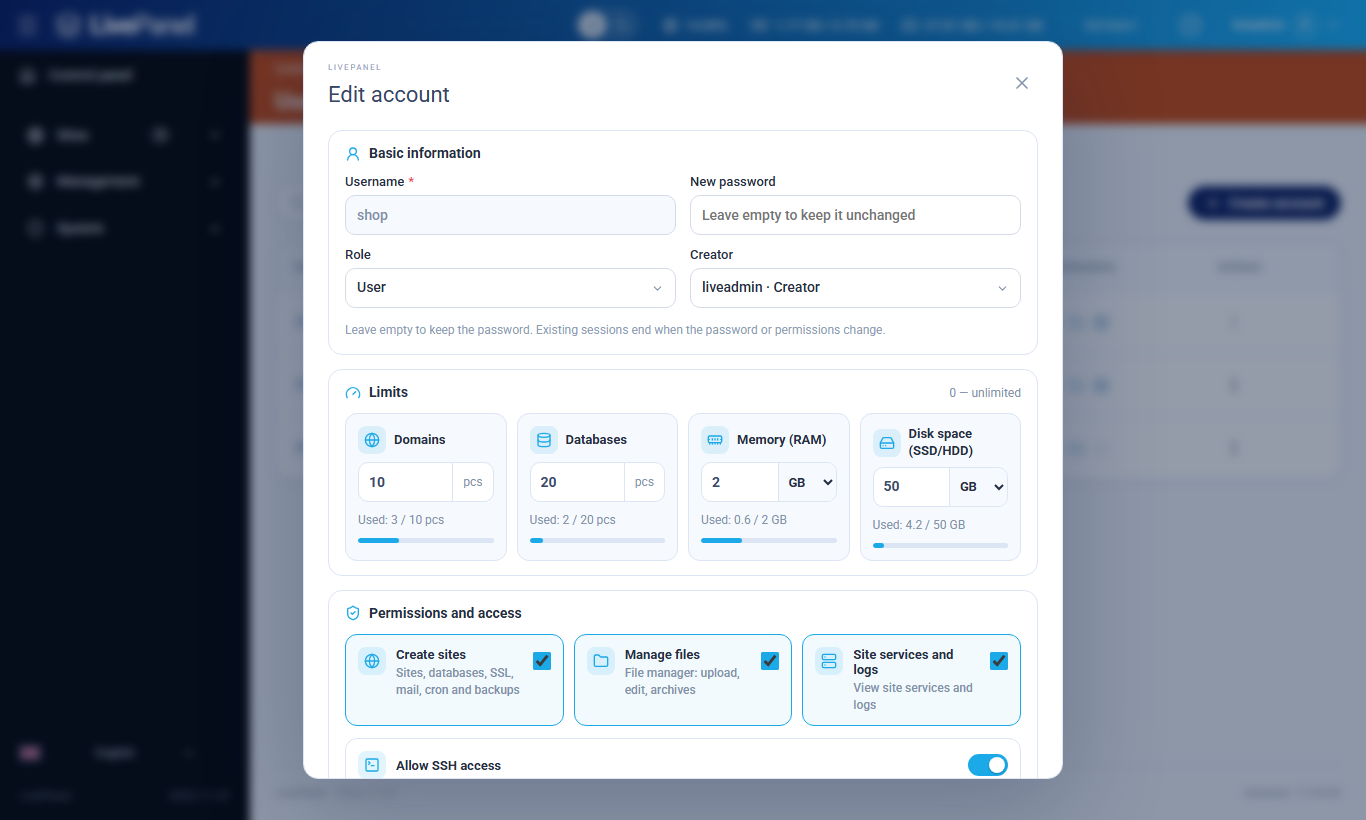
Basic information: login, password, role and (for an administrator) which account it belongs to.
-
Limits (on the Pro and Premium plans; 0 — unlimited):
Limit Meaning Domains How many sites can be created Databases Number of databases Memory (RAM) How much RAM the sites may use in total (at least 32 MB) Disk space Disk for site files, uploads and mail Users How many users a reseller may create -
Permissions and access:
- Create sites — sites, databases, SSL, mail, cron and backups;
- Manage files — the file manager: upload, edit, archives;
- Site services and logs — view services and logs;
- Allow SSH access — SSH/SFTP with the panel password; the user sees only their own folder.
-
Save.
Managing accounts
The row menu has: edit, change password, disable 2FA (for a user who lost their phone) and delete. With Account active off, the user cannot sign in.
How limits work
- When the domain or database limit is reached, no new site or database is created.
- The disk limit uses Linux disk quotas. If quotas are off, the panel shows an Enable quotas button (ext4 only; a copy of the old
/etc/fstabis kept). - RAM limit: when the account’s sites reach 90% of it, the account is blocked and its sites are disabled (files and databases are kept). The list shows a “RAM block” badge and the administrator gets an email. To lift the block, edit the account, turn on Account active and save — the sites are enabled again.
A user sees their limits and usage in the top bar.
Resellers and branding
A reseller gives the users they create limits within their own limits. In Settings → Branding a reseller sets the panel name, logo and color — their customers see the panel with that brand (Panel settings and security).