Managing a site
Click a card in the site list to open the site page. It shows the main facts of the site and all its sections as tiles.
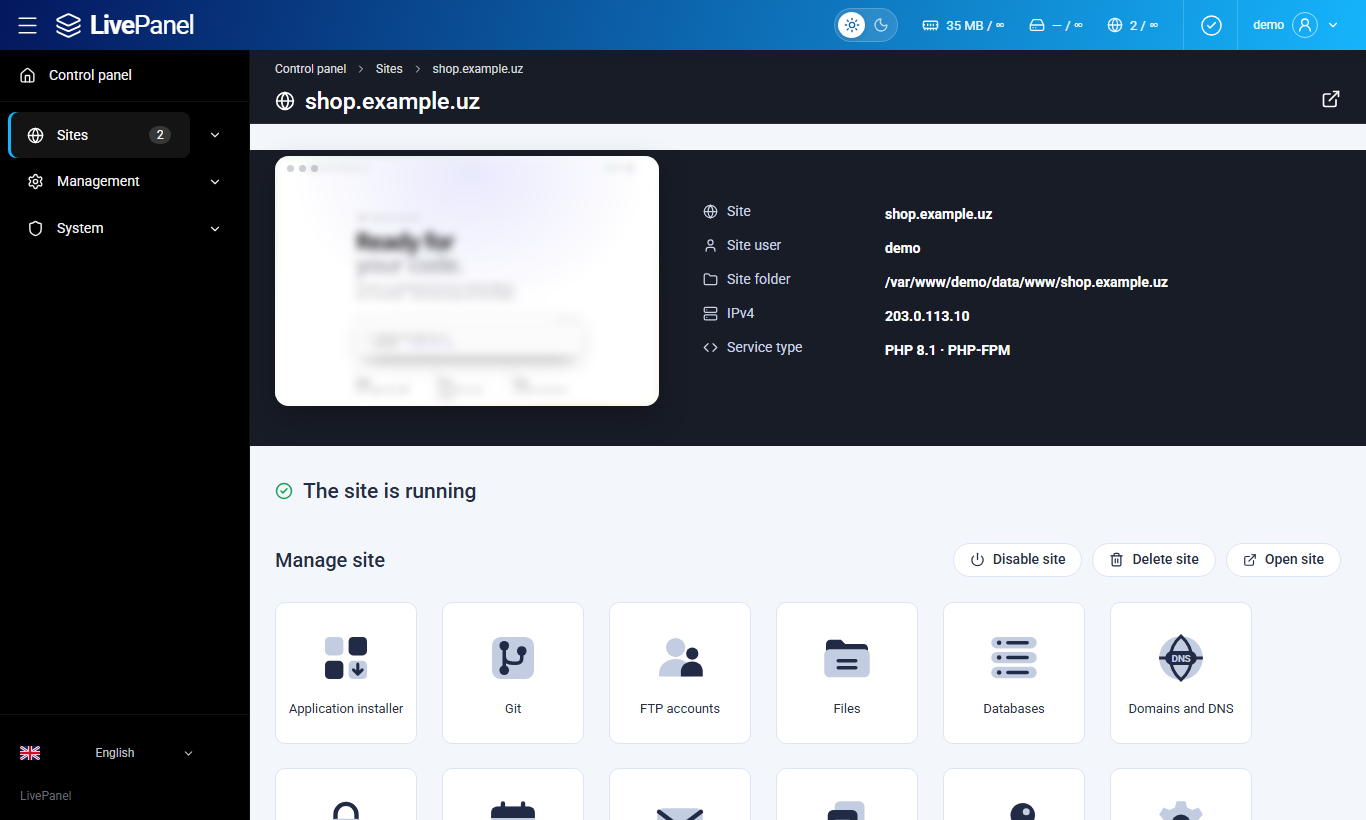
Site details
- Site — the domain; the icon next to it opens the site in a new tab.
- Site user — the Linux user the site runs under.
- Site folder — the site’s files.
- IPv4 — the IP address the site points to.
- Service type — PHP version and handler, Node.js, Python, static or proxy.
- Status: The site is running, The site is running with errors or The site is disabled.
Site sections
| Tile | Article |
|---|---|
| Application installer | Installing CMS and frameworks |
| Git | Deploying from Git |
| FTP accounts | FTP, SFTP and SSH |
| Files | File manager |
| Databases | Databases |
| Domains and DNS | Domains and DNS |
| SSL certificates | SSL certificates |
| Scheduler | Scheduler (cron) |
| Backups | Backups |
| Site access, Scanning | Site security and scanning |
| Settings | Site settings |
| Statistics | Statistics and traffic |
| Logs | Logs |
| New subdomain | Opens the wizard to create a subdomain with this site’s user |
Tiles depend on the account’s permissions: without “Manage files”, for example, the Files tile is not shown.
Disabling and enabling a site
Disable site stops the site for a while: visitors see “This site is disabled” (403) and the Node.js/Python service stops. Files, databases and settings stay. Enable site brings it back.
Deleting a site
Delete site removes the site completely:
- the site files, Nginx and PHP/Node/Python configuration and logs;
- the databases and Git settings of the site;
- the Linux user too, if it has no other sites.
You confirm with the code shown in the dialog. This cannot be undone — make a backup first.