The panel sets up a mail server for your domain: mailboxes such as [email protected], forwards, a DKIM signature so mail does not land in spam, and Roundcube webmail for the browser. The mail server (Exim and Dovecot) is installed automatically when the first domain is added — this can take 2–5 minutes.
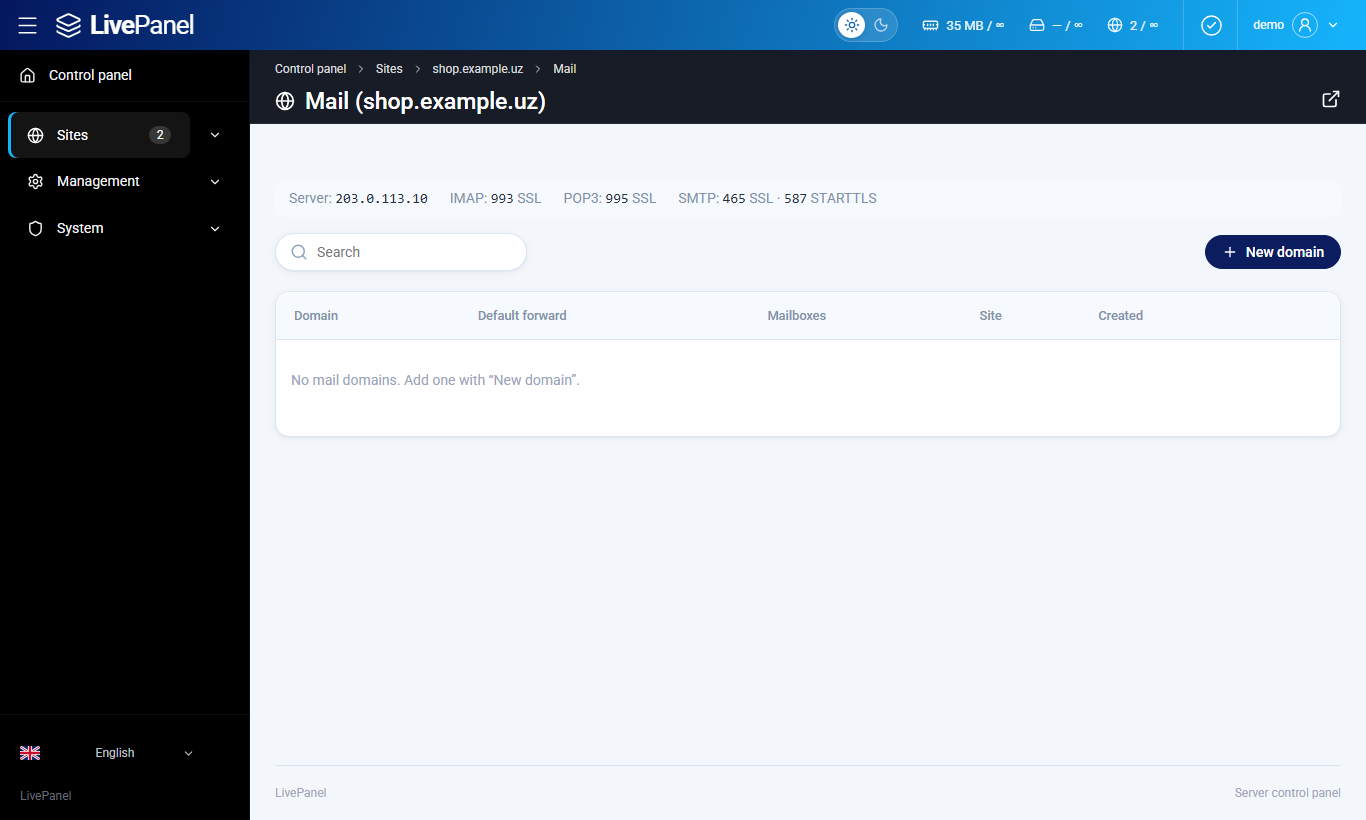
The top of the page shows the connection details: the server address, IMAP (993, SSL), POP3 (995, SSL), SMTP (465 SSL and 587 STARTTLS).
1. Add a mail domain
- Click New domain.
- Domain — mail addresses use this domain (
info@domain). It can differ from the site name. - Site — which site the domain belongs to.
- Save. A DKIM key is created for the domain.
In the domain settings:
- Default forward (catch-all) — mail to non-existent addresses goes to this address; if empty, it is rejected;
- the Mail enabled switch — when off, the domain accepts no mail.
2. Add the DNS records
For mail to arrive and stay out of spam, the domain’s DNS must have these records. The panel shows the exact values in the DNS records dialog:
| Record | Purpose |
|---|---|
MX |
The domain’s mail comes to this server |
A (mail) |
The mail server address |
TXT SPF |
This server may send mail for the domain |
TXT DKIM |
The signature of the messages |
TXT DMARC |
What to do with messages that fail SPF/DKIM |
If the DNS zone is on this server, the records are added automatically — Domains and DNS.
3. Create a mailbox
- Choose the domain and click New mailbox.
- Login — the part of the address before
@(info). - Password — a strong password; the panel shows its strength and can generate one.
- Aliases — extra names delivered to this mailbox, one per line (
sales→sales@domain). - Forwards — a copy of every message is also sent to these addresses (it stays in the mailbox too).
- Quota (MB) — the mailbox size; 0 means unlimited.
A mailbox can be turned off for a while — sign-in and incoming mail stop.
Setting up mail apps
In Outlook, Thunderbird or a phone mail app:
| Server | Port | Encryption | |
|---|---|---|---|
| Incoming (IMAP) | the server address | 993 | SSL/TLS |
| Incoming (POP3) | the server address | 995 | SSL/TLS |
| Outgoing (SMTP) | the server address | 465 or 587 | SSL/TLS or STARTTLS |
The login is the full address ([email protected]), the password is the mailbox password.
Webmail
With Roundcube installed (System → Applications → roundcube), you open mail in the browser at https://SERVER:6563/webmail/. The Webmail (Roundcube) link on the page leads there too.
If mail is not sent
- Many VPS providers block outgoing port 25 against spam. The panel warns when it detects this: receiving works, but mail to outside services (Gmail and others) does not leave. Ask your provider to open the port.
- If mail lands in spam, check the SPF, DKIM and DMARC records and that the server’s PTR (reverse DNS) record points to
mail.domain(PTR is set at the provider).